Starting and adding files to the repository
Starting and adding files to the repository
Follow the Steps 1, 2, 3 ... to have a complete understanding.
git init
Create a new empty local GIT repository in the path.
-b <branch-name> Configure the initial name of the branch
--initial-branch <branch-name> Same before
If you decide that you want the initial branch in all of your repositories to have a specific name apart from master, then you may set a variable called init.defaultBranch in your global configuration file. The default branch is refs/heads/master
In chapter 4, we're going to cover branches.
git init `<path>`
It sets up the necessary files and data structure for start managing your project's version control
git init .
Git created an invisible subfolder .git in the current folder
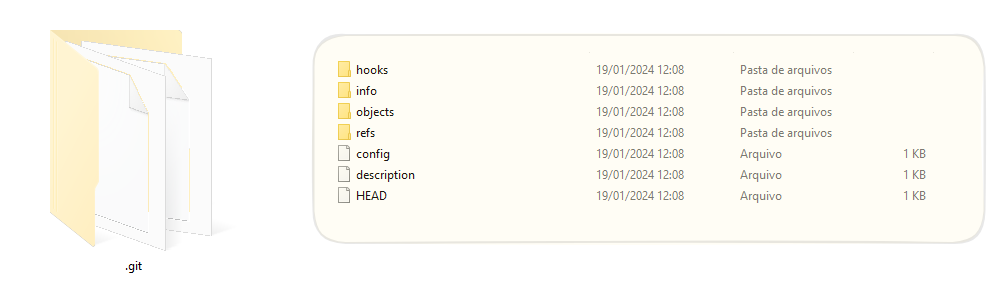
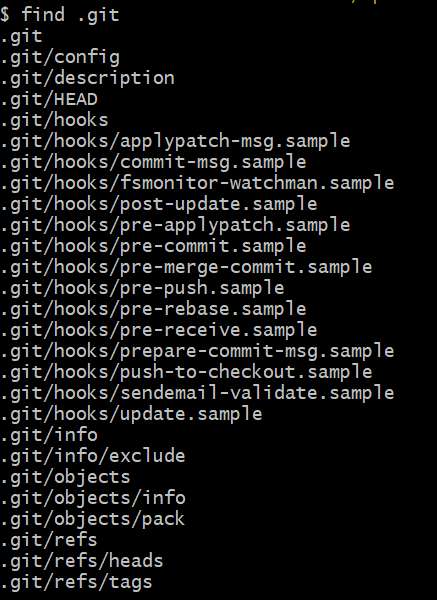
Low-level commands
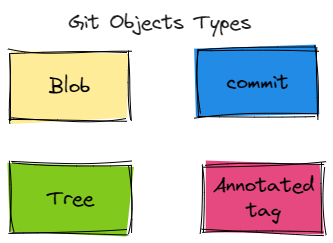
Git Object Types:
- Blob represents a single file
- Tree
- Commit
- Annotated Tag
git hash-object
echo "Hello, World!" | git hash-object --stdin
echo "Hello, World!" | git hash-object --stdin -w

If -w option was selected, a new object will be added to the Git Object Structure (a folder and a file). The first 2 characters will correspond to the name of the subfolder on ./git/objects.
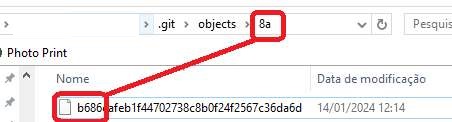
(Folder Name) + *ile Name) = SHA1 Hash of the file fixed-size length.
Hash is created based on the content of the file.
MD5 128 bit (16 bytes)
SHA1 160 bit (20 bytes) 40 hexadecimal characters
SHA 256 bit (32 bytes)
SHA 384 bit (48 bytes)
SHA 512 bit (64 bytes)
GIT uses SHA1 Hash (160 bits).
Shasum
The shasum provides a way to compute SHA1 message.
echo -n "Hello, world!" | shasum
e02aa1b106d5c7c6a98def2b13005d5b84fd8dc8
git cat-file
Output the contents or other properties such as size, type of one or more objects in the repository.
git cat-file -p <hash>
git cat-file -s <hash>
git cat-file -t <hash>
Objects
Git is a content-addressable file system. It means at its core Git is a simple key-value data store.
Blobs
Blobs are employed to store files with any extension such as source-code, pictures, text-files or any chunk of data.
There's a common belief that I've heard so many times that a commit is a diff or a delta from the previous commit. This is a misconception. Git stores all the content in the form of files ./git/objects folder.
git hash-object
Create an object from a file on repository, without a filename. A filename is recorded on the [[#Tree Objects]].
it returns the hash number that represents the object
git hash-object <filename>
Shell script to create blob object.
Pay attention, a physical file is not currently necessary to create an object. In this example, I use the command echo and pipe to combine the output and the next command git hash-object. It will be necessary to give a filename to this blob only in the future when we create a record on the tree file.
--stdin take input from standard input
-w write the git object on the database
echo "Hello Isabela!" | git hash-object --stdin -w
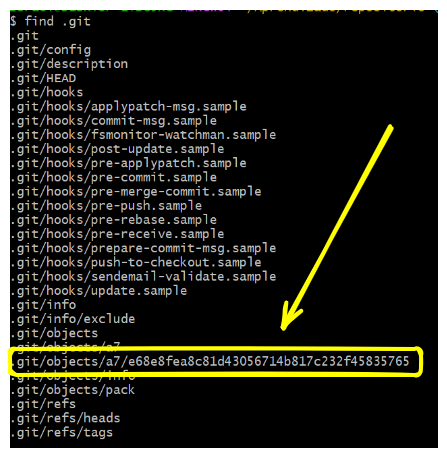
One single file (blob object file) was created on the ./git/objects/a7/ folder with the name e68e8fea8c81d43056714b817c232f45835765
The first two letters of the hash is the name of the subfolder on ./git/objects/a7

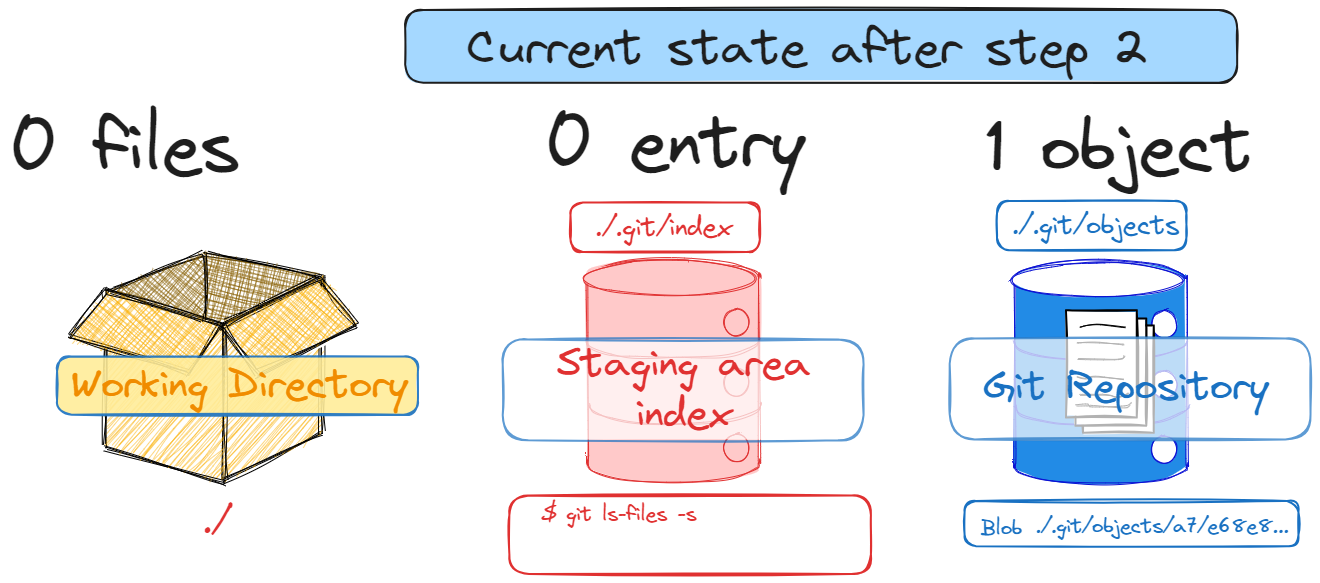
What will happen ?
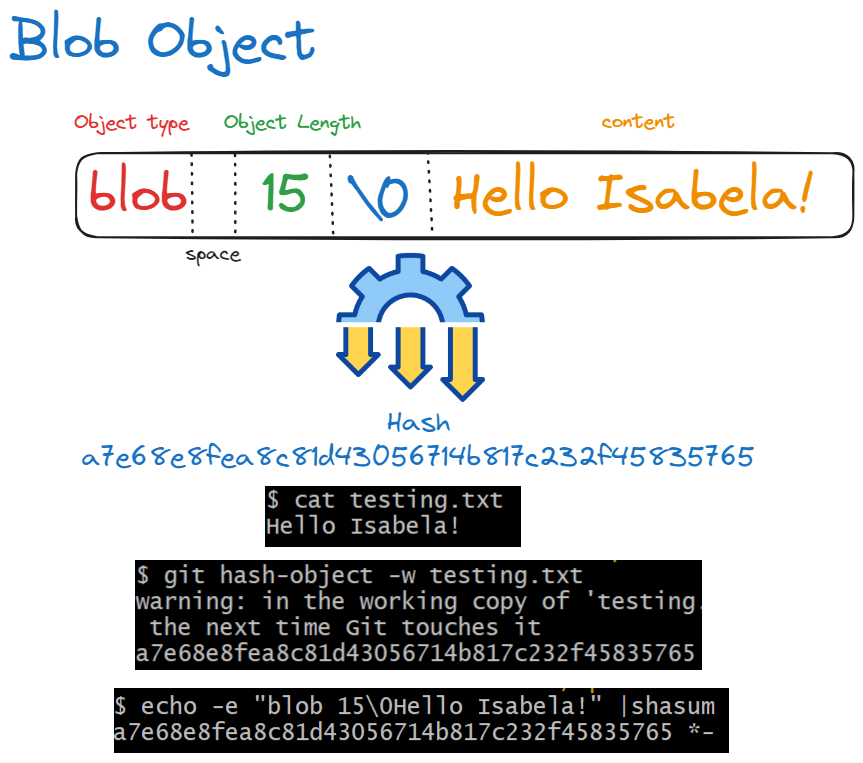
Size Length of content plus one
Tree Objects
A tree is the conceptual representation of a directory in Git. They are employed to keep the filename and group files in directories.
Shell script to create tree file
echo -e "100644 blob a7e68e8fea8c81d43056714b817c232f45835765\ttesting.txt" > tree.txt
tree.txt is created on the current folder.
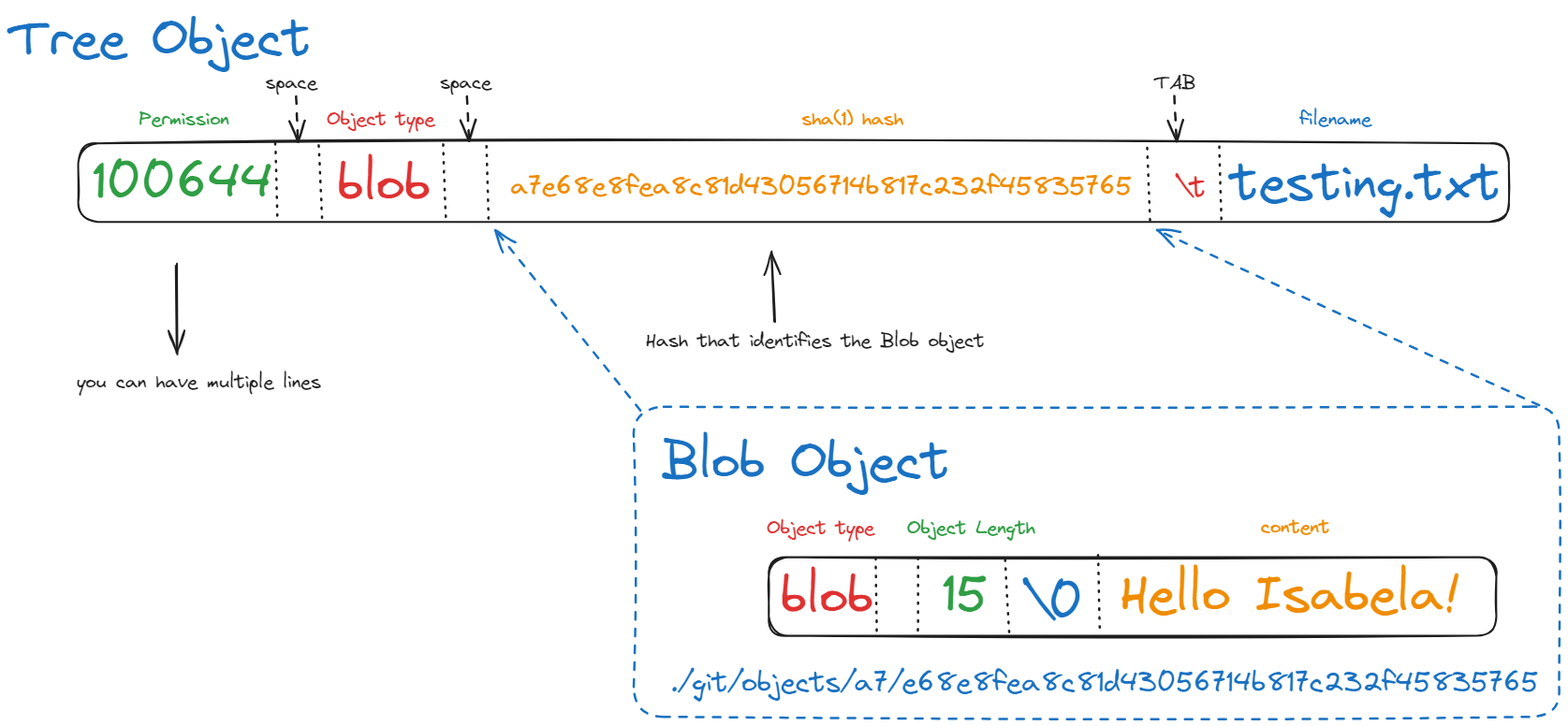
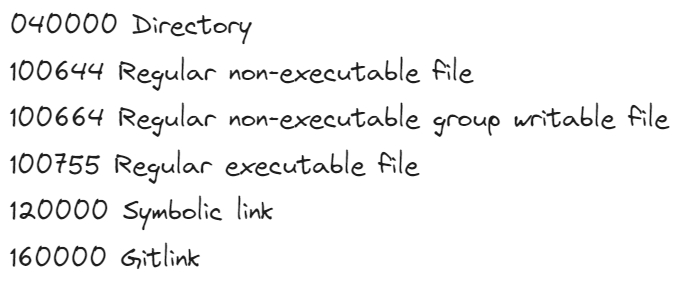
Keeps information about the directories, such as permission, hash and the filename or folder name. It may contain blobs or other trees.
Git Object permission
git mktree
Reads standard input in a non-recursive ls-tree output format and creates a tree object. But it doesn't move automatically to the staging area.
cat tree.txt | git mktree
A new tree object was created on the object folder


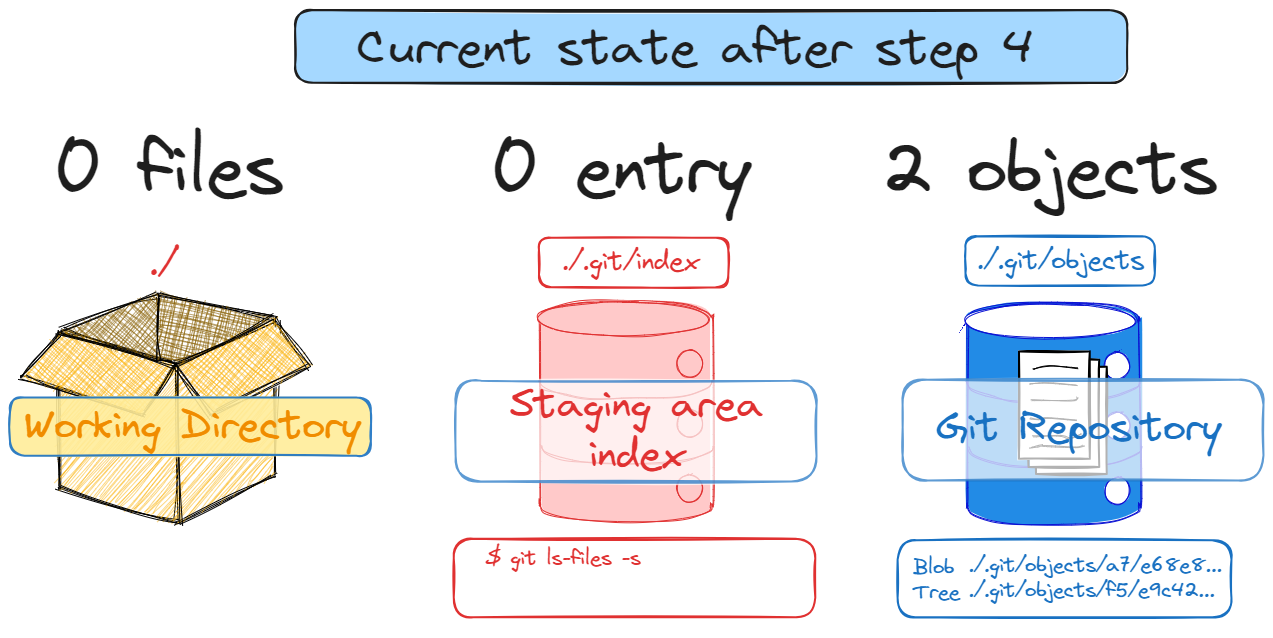
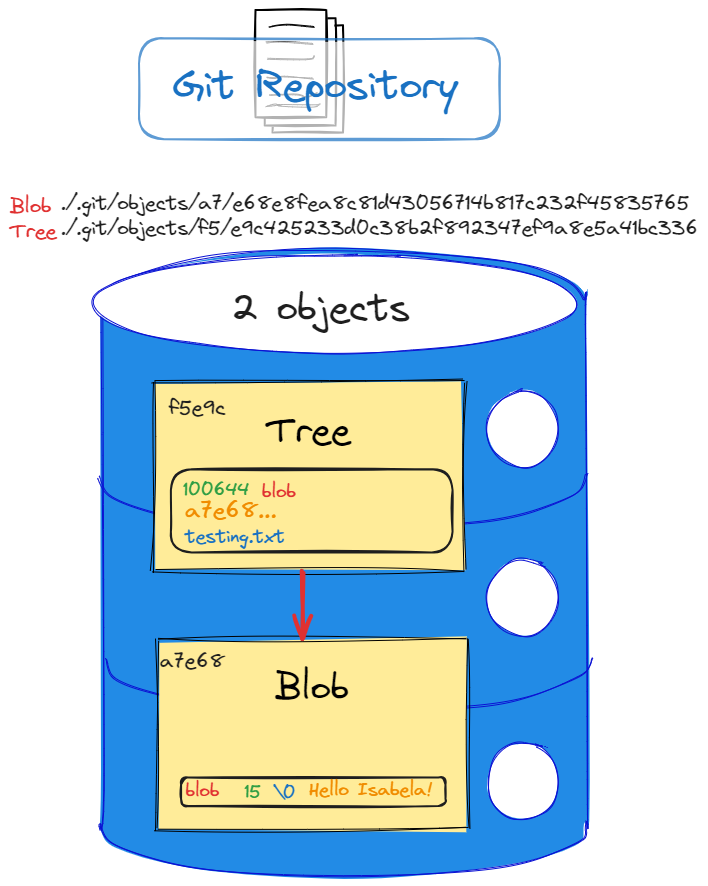
The number that comes below f5e9c425233d0c38b2f892347ef9a8e5a41bc336
is the sha(1) hash of the tree object. If you want to check it, just type git cat-file <hash>.
git cat-file -t f5e9c

You can also see the content using git cat-file -p.
git cat-file -p f5e9c

git ls-files
List files in the staging area.
The result bill be empty. The reason we do not move the files present on the git repository to the staging area. To achieve that, let´s do the next command git read-tree using the hash generated on the step before.
git ls-files -s

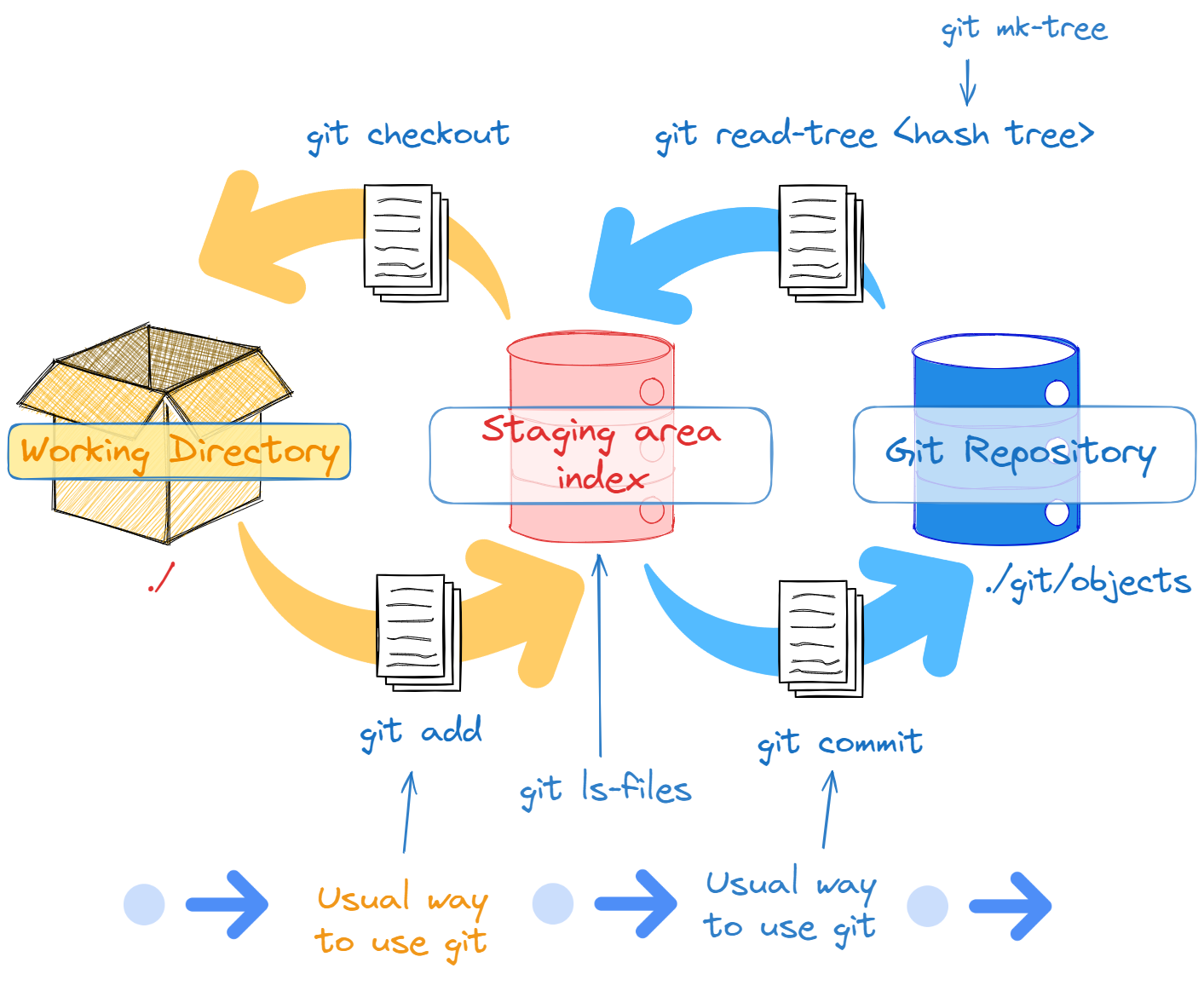
git read-tree
According Git-doc, this command moves* files from Git Repository to the staging area. (Actually the file is copied and converted into a binary representation in a single file called index).
git read-tree f5e9c425233d0c38b2f892347ef9a8e5a41bc336

The objects are moved to the staging area, but both (object blob and the tree object) remain in the same location. They are not physically moved.
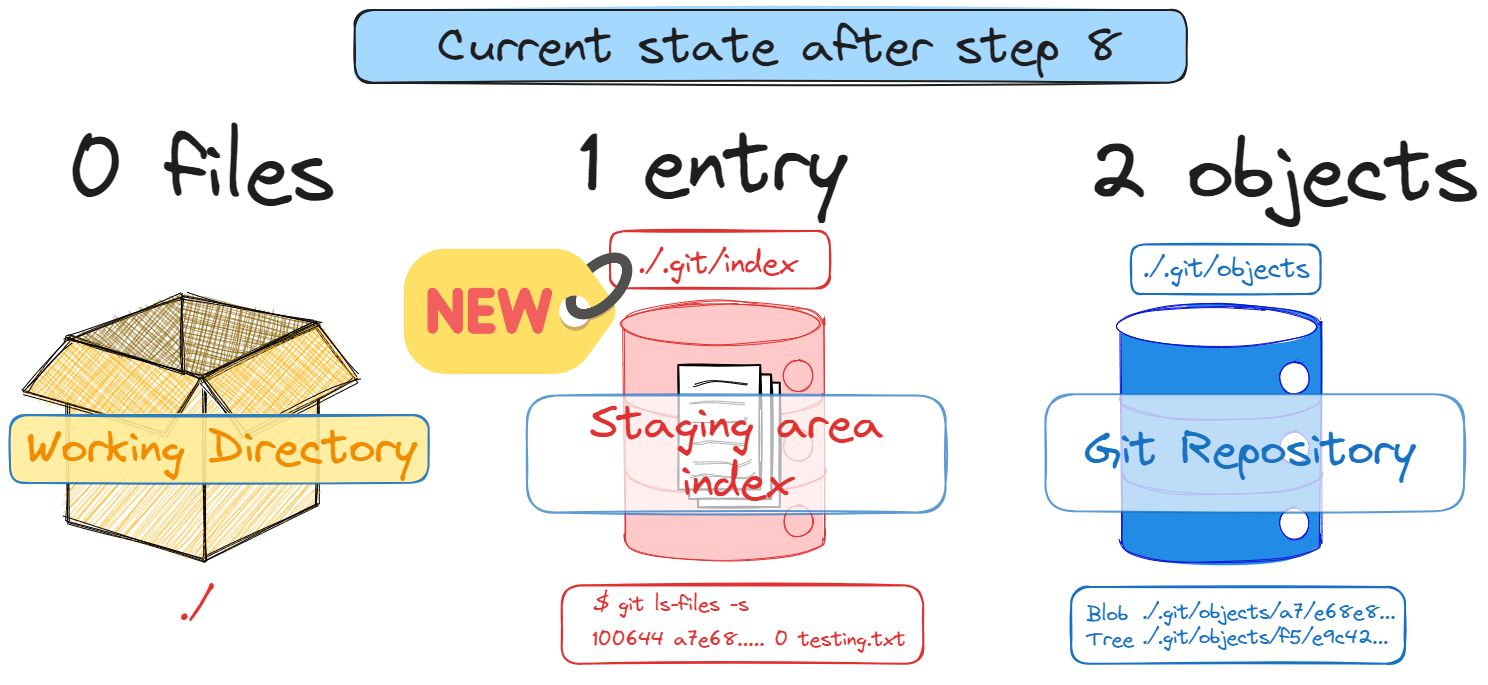
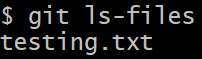
If you repeat the step 4, the file will be available on the staging area
git ls-files -s
Checkout
Now list all files on the root folder.

Delete all of them, we are recreating it just for learning with the next command git checkout

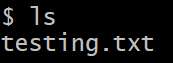
Now list all files again on the root folder.

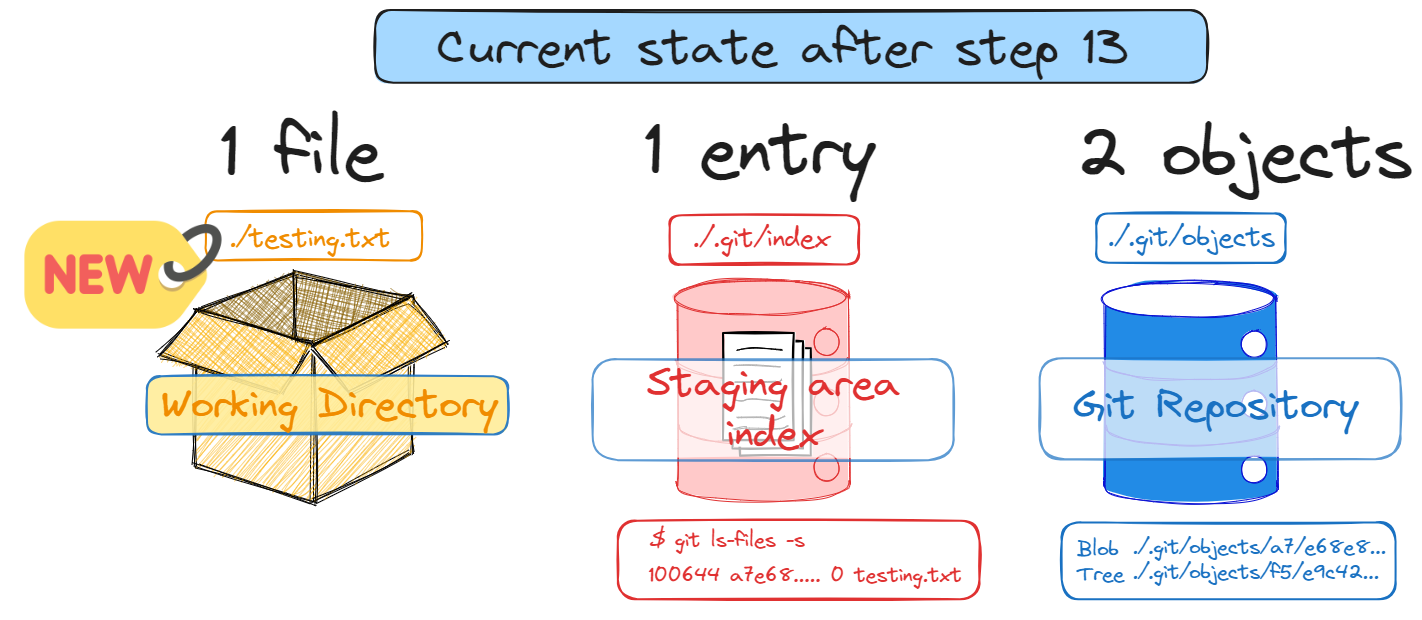
All the files have been deleted on the step before. We are recreating it with the command git checkout
git checkout
git checkout-index -a
The file testing.txt was recreated !
Script to create the example repository
# Step 1 - Create git repository
git init .
# Step 2 - Create blob object
echo "Hello Isabela!" | git hash-object --stdin -w
# Step 3 - Tree object file
echo -e "100644 blob a7e68e8fea8c81d43056714b817c232f45835765\ttesting.txt" > tree.txt
# Step 4 - Create tree
cat tree.txt | git mktree
# Step 5
git cat-file -t f5e9c
# Step 6
git cat-file -p f5e9c
# Step 7
git ls-files  -s
# Step 8 - Move files  Git Repository to the staging area.
git read-tree f5e9c425233d0c38b2f892347ef9a8e5a41bc336
# Step 9
git ls-files  -s
ls *
rm *
git checkout-index -a
Starting and adding files to the repository
References
https://git-scm.com/book/en/v2/Git-Internals-Git-Objects
https://github.com/yoichi/git-cat-index/blob/master/git_cat_index.py
https://timestamp.online/