Remote
Remote
https://learning.oreilly.com/library/view/git-for-humans/9781492017875/
Remote
A remote repository—instead of a local one on your computer—is a copy of a Git project that lives somewhere else. Remote repositories are “bare” repos. This means they reflect the actual state of your .git folder in your working directory. They are virtually identical to your local copy, with the difference they don't have staging area, old version branches and no working copy. They are usually marked with .git extension[1]
The great difference between Git and other distributed version control systems (DVCS) to classical centralized versioning systems (VCS) such as Subversion is that there's no central server where you can give custody of your repository. However, you can have many remote servers. This allows you to be fault tolerant and have multiple working copies where you can get or pull modifications, giving you incredible flexibility.
Your interactions with remote repositories will almost always take place within the context of a branch. After making changes and committing them to a branch on your local repository, you can use git push to submit your local copy of that branch—and all the new commits you’ve added—to the server. Whenever you need to refresh your copy of a branch with everyone else’s latest changes, you use git pull.
It's possible for one machine's data to accidentally overwrite the other's without realizing it , leading to data loss. A notable thing about Git is that this type of situation is technically impossible to happen for commits, Git will warn you of conflicts and will as you the necessity of merging.
Remote Protocols
There are two possible cases when you work with remotes.
Case A Cloning a remote repository into your computer. And started working from there
Case B You've already started some piece of code and wants to sync it with the remote repository
Case C Starting from scratch.
Local Protocol
The most basic is the Local protocol, in which the remote repository is in another directory on the same host[2] and it could be accessible by many ways, such as NFS, for example.
Case A
git clone /opt/git/belagrun/algorithm.git
Case B
In this case, you have already written code before and wants to add. Just create a new repository in the folder and add them
git init .
git remote add origin /opt/git/belagrun/algorithm.git
If your are receuveung the error below, follow the inscructions
remote: Permission to UserName/repo.git denied to AnotherUserName.
fatal: unable to access 'https://github.com/UserName/repo.git/': The requested URL returned error: 403
You have 2 different github (version control) accounts or If you are receveing an error 403 "Unable to Access" when you try to push changes on the git remote repository, try to change user.name and user.email parameters using git config command. The user.email and user.name MUST BE the same that you use on github.
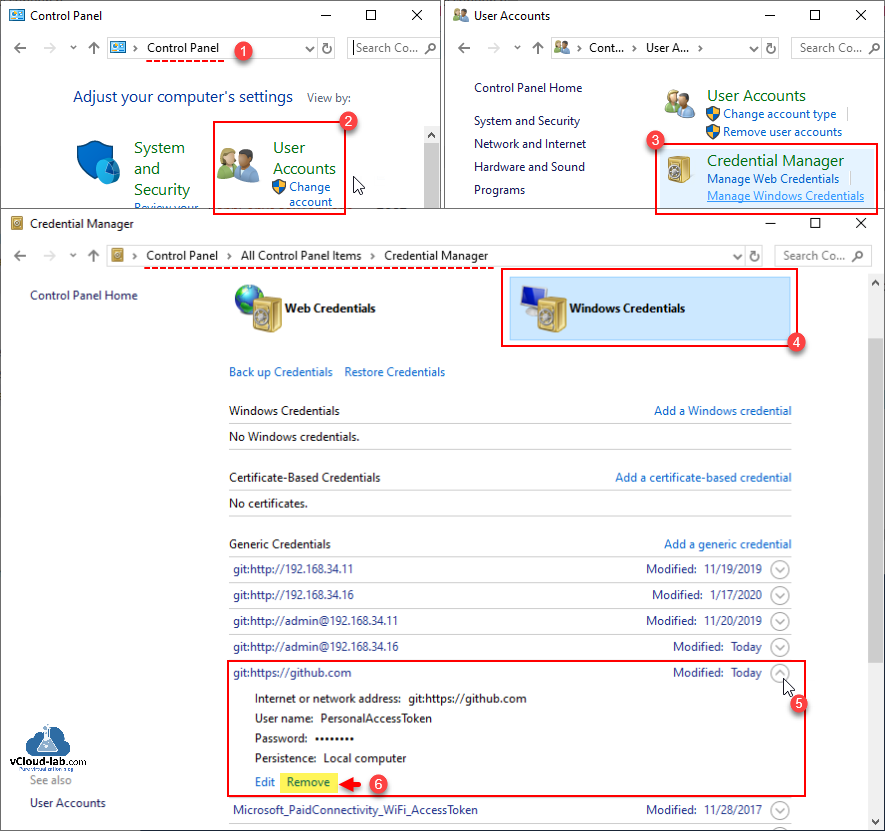
If the problem persists try to remove the github credentials on certified mangager
step 1: Go to Control Panel.
step 2: In the control panel find and go to user accounts
step 3: After that go to credential manager
step 4: Then Windows credentials
step 5: Go to Generic credentials, and search github.com, expand it
step 6: Finally delete the Github keys.
SSH Protocol
SSH is the most used protocol for remote repositories.
Case A
git clone git@github.com:belagrun/algorithm.git
Case B
git init .
git remote add git@github.com:belagrun/algorithm.git
Git Protocol
Git transport is quite similar to SSH, but it doesn't offer the same security layer (TLS or criptography). So, it's vulnerable.
Case A
git clone git://username@server/webproject.git
Case B
git init .
git remote add origin git://username@server/webproject.git
HTTPS Protocol (Smart HTTP)
Smart HTTP operates very similarly to the SSH, but runs over standard HTTPS ports and can use various HTTP authentication mechanisms, meaning it’s often easier on the user than something like SSH, since you can use things like username/password authentication rather than having to set up SSH keys. It has probably become the most popular way to use Git now[2:1]
Case A
git clone https://github.com/belagrun/git-course.git
Case B
git init .
git remote add origin https://github.com/belagrun/git-course.git
Pushing data to remote repository
First, check if the branch is up-to date
git push -v Check if exist anything to push to the remote repository
git pull -v Check if exist anything to pull to the remote repository
git push -v
git pull -v
git push <remote> <branch>
git push -u origin main
git push --set-upstream origin main
According Git Documentation, you can only push to two types of URL addresses[3] :
-
An HTTPS URL like
https://github.com/user/repo.git -
HTTPs in our example (https://github.com/belagrun/git-course.git)
-
An SSH URL, like
git@github.com:user/repo.git -
SSH in our example (git@github.com:belagrun/git-course.git)
Before pushing your repository remotely, its important to know:
You need to add a PAT (Personal Access Token) before execute the commands in this example, otherwise you will receive a message like this
Support for password authentication was removed on August 13, 2021
The reason is because GitHub is no longer accepting account passwords when authenticating Git operations.
Creating a personal access token
Case C
Create a new repository from the scratch
echo "# git-course" >> README.md
git init
git add README.md
git commit -m "first commit"
git branch -M main
git remote add origin https://github.com/belagrun/git-course.git
git push -u origin main
After create the private token, use it as your password and don't forget to keeps save with you because Github will not show to you it again.
Case B
Mocking files for testing. Substitute username and server and webproject with yours.
echo "#include <iostream>\nint main(){\nreturn 0;\n}" > hello.cpp
echo "Hello B" > fileb.txt
echo "// Hello C" > hello.h
git init .
git remote add origin https://github.com/belagrun/git-course.git
Adding files to remote repository
git add .
git commit -m 'add my code'
git branch -M main
git push -u origin main
git pull origin main
Tracking
The remote repository has the default name origin.
To start tracking a remote branch, we need to create a local branch and tracking it with the following command
git checkout -b remoteBugFix --track origin/stable-3.2
The git branch -vv command provides a detailed overview of local branches and their tracking information. This information can be valuable for developers to understand the relationship between local and remote branches and to ensure that their local branches are in sync with the corresponding remote branches.
git branch -vv

Script
### checking out a local branch that tracks a remote branch
git checkout -b remoteBugFix --track origin/stable-3.2

git branch -a
git branch -vv
git branch -r


git remote show origin


## https://learning.oreilly.com/videos/complete-git-guide/9781800209855/9781800209855-video10_11/
git fetch -v
git pull -v

# 3 ways to tracking
# https://www.git-tower.com/learn/git/faq/track-remote-upstream-branch
git checkout --track origin/dev # tracking
git push -u origin dev # tracking
git branch -u origin/dev #tracking
References
Demaree, David. Git for humans:
. 1th ed. New York: A Book Apart, 2016. ↩︎'Git - The Protocols’. Accessed 27 January 2024. https://git-scm.com/book/en/v2/Git-on-the-Server-The-Protocols. ↩︎ ↩︎
GitHub Docs. ‘About Remote Repositories’. Accessed 27 January 2024. https://docs.github.com/en/get-started/getting-started-with-git/about-remote-repositories. ↩︎