Branches
Branches
"When we think of branches, two things spring into mind. One is divergence. It even shows in natural language. “The road branched” refers to a road splitting into multiple directions. Secondly, our intuition of a branch is something that has some length – not just a single point. In terms of version control, we would then expect that we have branches when we have separate chains of commits" [1]
As mentioned above, a branch is just a link between different commits, or a pathway through the commits[2]. When you make a commit, Git stores a commit object that contains a pointer (in others word SHA1 hash to the snapshot of the content you staged.
When we create a new repository with git init, behind the scenes, Git creates a default branch called master (at this point it is the current or the active branch).
Historically, this term came from Bitkeeper, a predecessor to Git. Bitkeeper referred to the source of truth as the master repository and other copies as “slave repositories”[4].
Recently, master was not considered an inclusive terminology, so the community decided to substitute this term with main.
If you want to experiment with your code but you do not want to disrupt the current flow?
Create a new branch! Let's do it
Create a new Branch
The usual way to make a new branch featurexxx is
git checkout -b <branch-name> <hash-commit> This creates the branch featurexxx pointing at the current commit, and switches to it. You can also specify a commit at which to start the new branch, rather than the current one
git checkout -b featurexxx
git checkout -b featurexxx 4e26ab
It's possible to create a new branch featurezzz without changing the current one.
git branch <branch-name> Create a new branch
git branch <branch-name> <hash-commit>
git branch featurexxx
If you execute the git branch and it acts like vi or a less command, this is normal behaviour. You can change the global configuration with this command.
git config --global pager.branch false
If you have the intention to rename a Git repository’s branch name while preserving the repository’s commit history, you can easily do so like this:
git branch -m <old-branch-name> <new-branch-name>
Multiples branches can co-exist in the same repository even pointing to the same commit. They are located in the subfolder ./git/refs/heads. The heads directory stores a file for each local branch in your local repository. Obviously, there must be only one current branch
Another significant point to know is that Git automatically moves forward the branch to the latest commit. A branch is essentially a pointer to a commit, which has a parent commit, a grandparent commit, and so on[2:1].
A typical utilization of a branch is to work on a new software feature in isolation of the main line of development. When you create a branch, you are creating a fork from a specific state of the project’s timeline. Git’s branches enable you to separate experimentation from production-ready code.
Periodically, It’s recommended to merge master into your feature branch, to ensure you’re working on up-to-date code and notice and resolve any conflicts. When the feature is ready, you do the opposite: merge the feature branch into master, adding the new code to the main version of the project. Another use for multiple branches is to continue maintenance on older versions of software[5].
Delete a branch
To delete a branch, run the following command:
-D It will delete even if you have pushed to a remote repository
-d Only delete if it has been synchronyzed with a remote branch, to ensure you don't lose data
git branch -D new_test_branch
Change the current branch
Change the current branch with the following command:
git checkout – check out the previous branch
git checkout <branch>
The only thing that has to happen to switch branches is to change the HEAD symbolic ref to point to the new branch name.
Remember, after executing git checkout the current branch will be the one that you inform.
git symbolic-ref HEAD
If any moment you receive this message on output, it means you are using git in a detached mode state. Get additional information in the next chapter, in the section where we treat git detached state. But in simply words, to exit this state, just type git checkout <branch-name>
git symbolic-ref HEAD
fatal: ref HEAD is not a symbolic ref
It's good practice, create a hierarchical branch name that resembles a Unix pathname. You may easily identify, via branch name, various feature implementations and bug fixes or representing its changes contributed by you as an individual.
For example, you can split into separated branches such as features/feature-XXX, bug/ticket-number, or ppremk/feature-B. (but you cannot end with a slash). Another advantage when using hierarchical branch names is that Git, just like the Unix shell, supports wildcards.
git show-branch 'features/*'
git show-branch 'bug/*'
When we execute a git checkout to the specific commit, we enter a state called DETACHED STATE. This means that everything that comes after the commit that we check will not be visible with the command git log. This means because we see our working directory at the perspective of the new HEAD, in other words, the commit.
For this reason, if your intention is to list all commits in the repository. You must execute the following command.
git log --all
It's important repeat that your working directory may contain only a single version of your project at any moment of time.
Comparing branches
git diff <other_branch> <path>
HEAD~1 parent commit
HEAD current commit
HEAD~ is an alias for HEAD~1
--staged to see the difference between our workspace, stage, and repository
git diff HEAD~1 HEAD
Some words about HEAD~ and HEAD^.
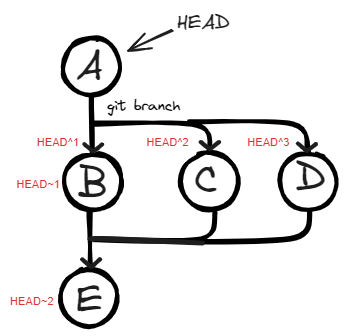
HEAD~<number> means finder the <number>-th parent in a single line of parents referenced by HEAD, on the other hand,
HEAD^<number>-th allows navigating into commits with multiple parents. For example:
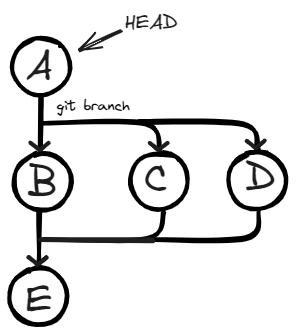
HEAD^1 is B (Is the same as HEAD~1)
HEAD^2 is C the second parent when you have a fork.
HEAD^3 is D, the third parent when you have multiples fork.
HEAD~1^2 is ERROR. fatal: ambiguous argument: unknown revision or path not in the working tree error. It references a commit that does not exist.
You can even combine ~ and ^ in a single command as HEAD^1~1
HEAD^1~1 is E
HEAD^1^1 is E
HEAD^2~1 is E
HEAD^3~^1 is E
Try to solve this example
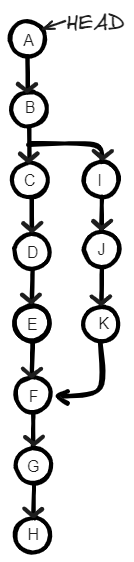
A^1 = _______
A~1 = _______
A~2 = _______
A^2= _______
A~5 = _______
A~1^2 = _______
A~1^3 = _______
A^1^1= _______
A~2~1= _______
A~1^1= _______
A~1^2= _______
A^5= _______
A^1^1^1 = _______
A^1^1~2 = _______
A^1^2 = _______
A^1^2~1 = _______
A^1 = B
A~1 = B
A~2 = C
A^2=ERROR. fatal: ambiguous argument: unknown revision or path not in the working tree error.
A~5 = F
A~1^2 = I
A~1^3 = ERROR. fatal: ambiguous argument: unknown revision or path not in the working tree error.
A^1^1= C
A~2~1=D
A~1^1=C
A~1^2=I
A^5= ERROR. fatal: ambiguous argument: unknown revision or path not in the working tree error.
A^1^1^1 = D
A^1^1~2 = E
A^1^2 = I
A^1^2~1 = J
There is also a special case HEAD^0 that means the commit itself.
git show <name>:<path> Where branch can be any ref (branch, tag, HEAD, etc.)
git show <name>:<path> > output redirect output to a new file
git show <name>:<path>
git show isabela:./
git show featurexxx:file1.txt > file1_test.txt
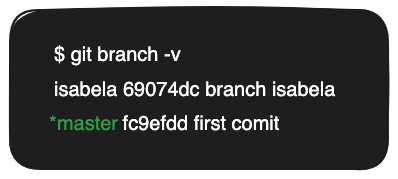
git branch -v
$ git branch -v
isabela 69074dc branch isabela
*master fc9efdd first comit
Bug fix and developing a new feature
This is a sequence of steps to create a new branch for developing a new feature or fixing a bug isolated from the core line development.
git branch bug/fix-ticketid-001
git branch
bug/fix-ticketid-001
bug/fix-ticketid-002
bug/fix-ticketid-003
git log -1 bug/fix-ticketid-001 --format=format:%H
fc9efdd155d809f6614cba94c80a40bbd7c4ffa2
--edit-description This parameter will open an editor. Close and the message will be saved.
git branch --edit-description bug/fix-ticketid-001
git config --get branch.<branch-name>.description To retrieve the description for the branch
git config --get branch.bug/fix-ticketid-001.description
Branch was created to resolve ticket-id #20320303021
The other steps you do as usual.
Further ahead, we will see using remote repositories as well.
Branches
Abildskov, Johan. Practical Git: Confident Git through Practice. New York: Apress, 2020. ↩︎
Daityari, Shaumik. Jump Start Git. Vic, Australia: SitePoint Pty. Ltd., 2015. ↩︎ ↩︎
‘Git - Basic Branching and Merging’. Accessed 20 January 2024. https://git-scm.com/book/en/v2/Git-Branching-Basic-Branching-and-Merging ↩︎
‘The New Git Default Branch Name’. Accessed 20 January 2024. https://about.gitlab.com/blog/2021/03/10/new-git-default-branch-name. ↩︎
Silverman, Richard E. Git Pocket Guide. Sebastopol, CA: O’Reilly Media, 2013. ↩︎